Search This Blog

Showing posts with label pdf. Show all posts

Wednesday, September 30, 2015

Time, Time, Time.....and Need More Time

Below are some TIME SAVING tips and tricks.  These tips and tricks will save you time.  In today’s society, having time to do the things you want or need to do is hard to come by.  


Time Saver 1
Q1: Do you need or want to convert a pdf to an editable document and don't have TIME to type it?
A1: Yes! Google Docs can convert a pdf to an editable document.
Ask DeeAnn if this saved her tons of time.


Time Saver 2
Q2: Do you want to manage TIME in the classroom more efficiently? Do you want to students stay on task?
A2: Yes and Yes! Using Google Classroom and the Google Classroom Extension will do just that!


Check Out Alice Keeler’s Blog Post on Google Classroom Share Extension.


If you are using Google Classroom.... you WANT and NEED to USE this.


Note: The tech office has “Pushed Out” the Google Classroom Share Extension for EVERYONE!  You will need to have your students logging into their chrome vs gmail. See Time Saver 5 for details.


Time Saver 3
Q3: Do you need TIME to write a paper and don't have the typing skills to get it done fast?
A3: Yes! Google Doc has a new feature called Voice Typing. (Speech to Text)


Time Saver 4
Q4: Do you have a document, spreadsheet, and/or presentation due and don't have the TIME to start from scratch?
A4: Yes! Check out Google Docs, Sheets, and Slides and their New Templates they have to offer.
Document: docs.google.com
Spreadsheet: sheets.google.com
Presentation: slides.google.com


Time Saver 5
Q5: Do you wish you can save TIME logging students into their Google Apps Account?
A5: Yes! Having your students log into Chrome instead of Gmail does just that. It keeps them organized and they have the feel their own "personal" browser. It is like logging into a Chromebook.
Instructions below.


****Challenge -- Please post your favorite time saver you plan or have used.****


A small token of my appreciation will be given when you make a post on the link above.

By: Jessica Fincel

Tuesday, April 7, 2015

No More 3 Ring Binder -- Online Portfolio

Are you in the following scenario??....It is April...Your teaching artifacts are due and you need to create a professional portfolio for your administrator....You wish there was an easier way than printing all your documents out, hole punching each one, organizing them, and then placing them into a three ring binder. Well, there is!  Now is the time to set up an Online Portfolio.  I  have an easy template that you can use. All you need to do is add your own content.  


All you need to do is add your own content...

Objective 1: Create a Google Site from a Template
Step 1: Log into your Google Account
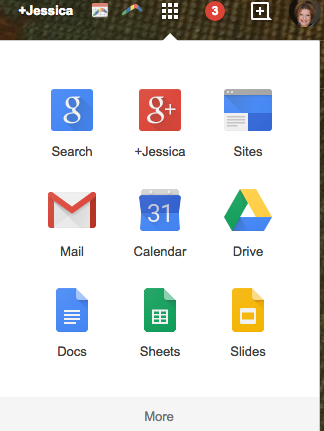
Step 2: Go to  Google Sites (You will find it under your Grid drop down in your Email - See Screen shot below.)
Screen Shot 2015-03-30 at 10.58.03 AM.png

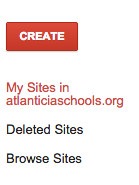
Step 3: Click “Create.”
Screen Shot 2015-03-30 at 10.51.51 AM.png

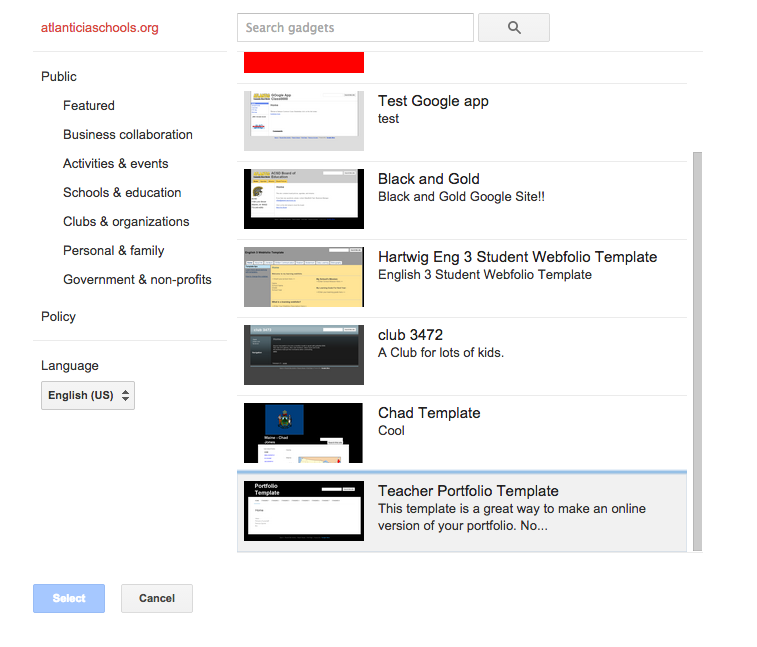
Step 4: Click on “Browse the gallery for more” (I know I always say “avoid templates”, but I promise you this one is a good one and easy to use).
Screen Shot 2015-03-30 at 10.53.02 AM.png
Step 5: Click the “Teacher Portfolio Template” and then click Select. (Or you may click on HERE and use this template -- especially outside ACSD domain.)
Screen Shot 2015-03-30 at 10.53.39 AM.png


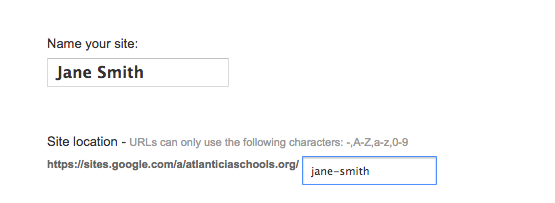
Step 6: Name your site.
Screen Shot 2015-03-30 at 10.56.12 AM.png

Step 7: Click “Create.” (It is on the top of the page.)


Objective 2: Get your Content Organized on your Computer

Now it’s time to find all YOUR AWESOME content.  Get it organized and ready to upload to your website.

Click HERE to watch a quick tutorial on how to save files to pdf and organized them on your computer.

Other tips: Screen Shot of your content

Objective 3: Content, Content, and More Content

Standards 1 - 8 are File Cabinet Web Pages
What is a File Cabinet Page?
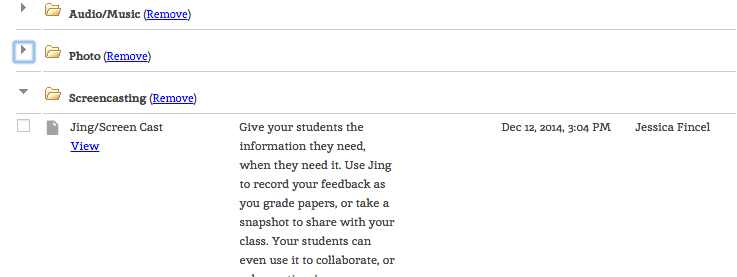
A file cabinet page is designed to store and organize files from your computer, web (link), and/or Google Drive.  
Screen Shot 2015-03-30 at 11.08.22 AM.png

You may also organize the files into different folders on your site.  


Screen Shot 2015-03-30 at 11.09.56 AM.png

Click HERE to watch a quick tutorial on how to update your file cabinet page.


Objective 4: Update the Home Page
Click the Pencil Icon and update the home page.

Suggestions:
Bio
Picture
Family Picture
Favorite Quote
Why you love teaching
Personalize this page

Objective 5: Share the Site
Screen Shot 2015-03-30 at 12.55.28 PM.pngSTOP AND THINK BEFORE SHARE...
Some of your content that you put on this document is Sensitive Data... So only share this site to people that you want to see it.  IE: Administrators
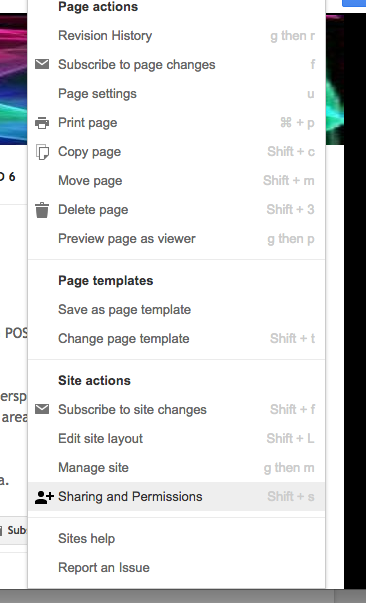
Step 1: Click on the Gear
Step 2: Click on the Sharing and Permissions


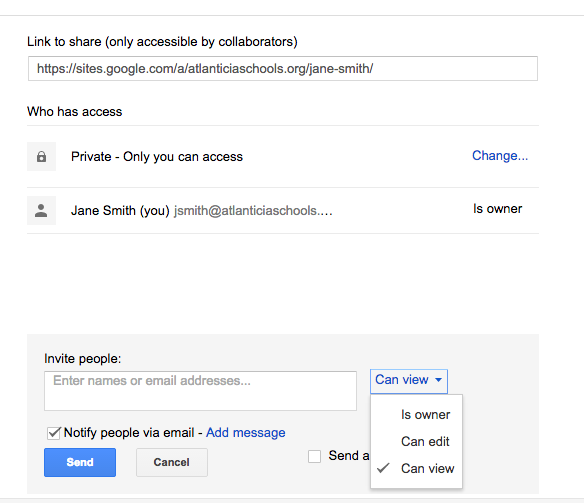
Step 3: Share to the appropriate personnel (I suggest you use VIEW ONLY).
Screen Shot 2015-03-30 at 12.57.31 PM.png

Objective 6: Personalize your site
Idea 1:  Change the Header
Idea 2: Change the Theme
Idea 3: Customize the Fonts and text
Idea 4: Add more pages....
Idea 5: This is your site... do what you want with it.  
Happy Creating!!

Google Site Resources:
By: Jessica Fincel