Search This Blog

Showing posts with label trackpad. Show all posts

Tuesday, March 17, 2015

Happy Saint Patrick's Day -- Lucky Tips

Happy Saint Patrick's Day!!!


I am sticking with my Holiday themes this year as it reminds me to create and post to the tech blog.  My goal is to post once a month in the hopes all of you read it :)  So, here it is....


The following two websites demonstrate progress.  I received an email from an administrator and a teacher to make sure I tell teachers about them.  I think that is just AWESOME.  It goes back to one of my favorite sayings... “The best resource is each other” so THANK YOU to the people who brought these sites to my attention.


GetKahoot
A great website to create a quiz, survey, and discussion. A game-based classroom response system.
Teacher Side: https://getkahoot.com/
Student Side: https://kahoot.it/
Step 1 Create a Quiz Video


Khan, Khan, Khan
Do  I  really need to to say more... Khan is endless.

I  also had the privilege to witness 6 sections of math this month set up with Khan Academy.  Thank you Mr. Baier.  


Resources:

Also, do you know Khan and Bank of America are trying to help students and adults be better with their money? This is a great tool to understanding Financial Literacy. It is free curriculum at your finger tips.


The next website should not be a new one to you, but we have a unique and great opportunity until March 31st.  SUMDOG is temporarily open for both Reading and Writing and advanced Reporting for all subjects until March 31st. Check it out.


SUMDOG
Math (K)-8, Reading (Gr 1-5), and Writing (3-8)


Reminder:  All the students are set up and ready to go.


Friendly Apple Tip....
Having troubles with scrolling!!  
Tip 1: Two Finger Scrolling (Up and Down)
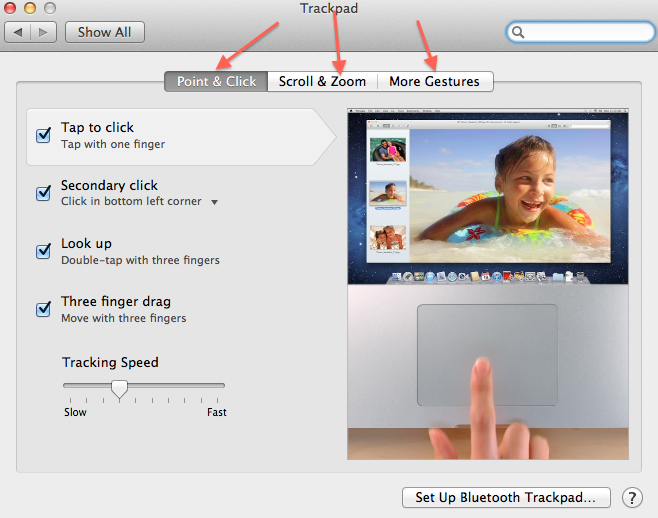
Tip 2: Change and Play with Track Pad Settings
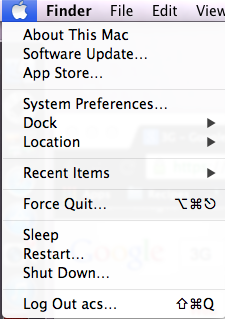
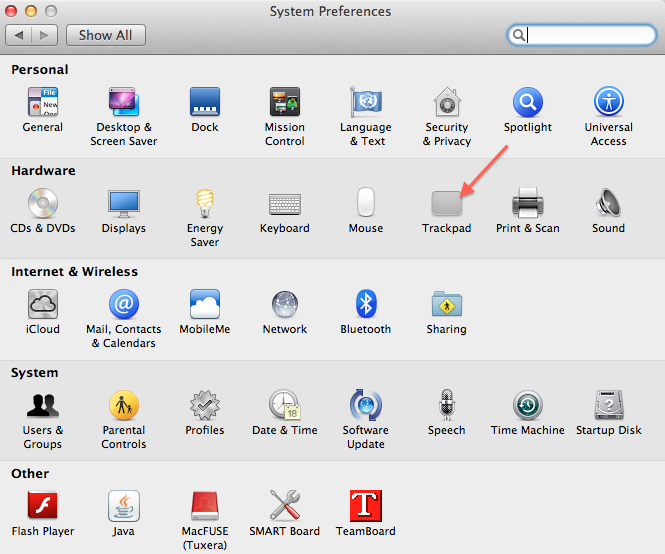
Instructions: Go to Apple, System Preferences, and Trackpad
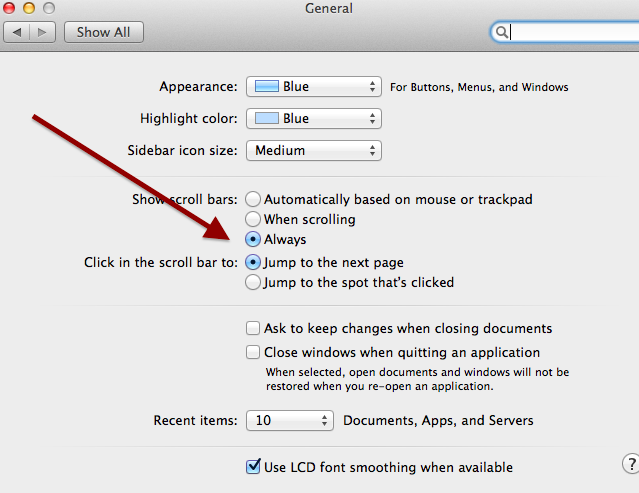
Tip 3: Turn your Scrolling on all the time
Instructions: Go to Apple, System Preferences, General and in the Show Scroll bars, Select--Always
Screen Shot 2015-03-17 at 10.58.01 AM.png


By: Jessica Fincel

Sunday, October 27, 2013

"Where are my Scroll Bars?"

Most of ACSD computers are or soon will be up to an OS X v10.7 Lion or later, and the biggest obstacle is the trackpad on the laptops. Most of our staff love their new computers, but want their scroll bars back.  Personally, I can't blame them. It took time for me as well to make the adjustment. We are all are creature of habits, and when something that we are use to being there all the time, it takes time to adjust for ALL of us!! So, I think the tips and tricks below might make your life a little bit easier -- I HOPE!!!


Trackpad

My favorite tip:
Two finger scroll up and down
Special Note: Scroll bars will only appear when you are scrolling. When not scrolling, they disappear to not get in the way of your content. You can change this behavior in the General pane of System Preferences, if desired.  

  • System Preferences
  • Click General Pane and then choose the option “Always” under Show Scroll Bars                      


Watch the following two-minute video regarding your 10.7 Trackpad Options:

Please make note you can change your own trackpad settings by following the steps below:

1. Go to your Apple (top left) then click on System Preferences


2. Click on Trackpad

3. Three Different Tabs - Point & Click, Scroll & Zoom, More Gesture -- 
Customize your settings

More detail information regarding your trackpad settings can be found on the Apple support page (link below).

http://support.apple.com/kb/HT4721


By: Jessica Fincel @jfincel32